Quickstart: Run GeoLens locally in 10 minutes
Follow these steps to go from git clone to a
fully operational GeoLens instance with admin access and your first uploaded dataset.
No cloud accounts required — everything runs locally via Docker Compose.
Prerequisites
- ✓ Docker Compose v2 — ships with Docker Desktop 4.1+ or as a standalone plugin
- ✓ ~4 GB RAM free — for Postgres, PostGIS, the API, and the frontend container
- ✓ ~10 GB disk — for the Postgres + PostGIS base images downloaded on first build
- ✓ Open local ports: 5434 (PostgreSQL), 8001 (API), 8080 (Frontend UI)
Step 1: Get the code
Clone the GeoLens repository or download the latest release tarball.
git clone https://github.com/geolens-io/geolens.git
cd geolens
Or download the release tarball:
curl -L https://github.com/geolens-io/geolens/archive/refs/heads/main.tar.gz -o geolens.tar.gz
tar -xzf geolens.tar.gz
cd geolens-main
Step 2: Configure environment
Copy the example .env file.
The defaults work out of the box for local development — no editing required unless you want
to change the admin username or password.
cp .env.example .env.env.example
are flagged for production change:
POSTGRES_PASSWORD,
JWT_SECRET_KEY, and
GEOLENS_ADMIN_PASSWORD.
For local evaluation you can leave them as-is.
Step 3: Start services
docker compose up -d --buildThe first build downloads Postgres + PostGIS base images (~1 GB). Subsequent starts take under 10 seconds. Verify that all services are running:
docker compose ps
The api,
db, and
frontend
services should all show running status.
Step 4: Log in and verify
Open the GeoLens UI in your browser:
http://localhost:8080
Log in with the default credentials from .env.example:
- Username:
admin - Password:
admin
The catalog will be empty after a fresh install — that's expected. Upload your first dataset in the next step.
Step 5: Upload your first dataset
Download a tiny public-domain sample — Natural Earth's 1:110m countries shapefile (~100 KB) — and upload it through the GeoLens UI.
curl -LO https://naturalearth.s3.amazonaws.com/110m_cultural/ne_110m_admin_0_countries.zip
In the GeoLens UI, click the upload button in the catalog header,
select the ZIP file, and confirm the detected CRS (EPSG:4326). Click Commit to publish.
The dataset will appear in the catalog and be available through the OGC API at
http://localhost:8001/collections.
What you'll see
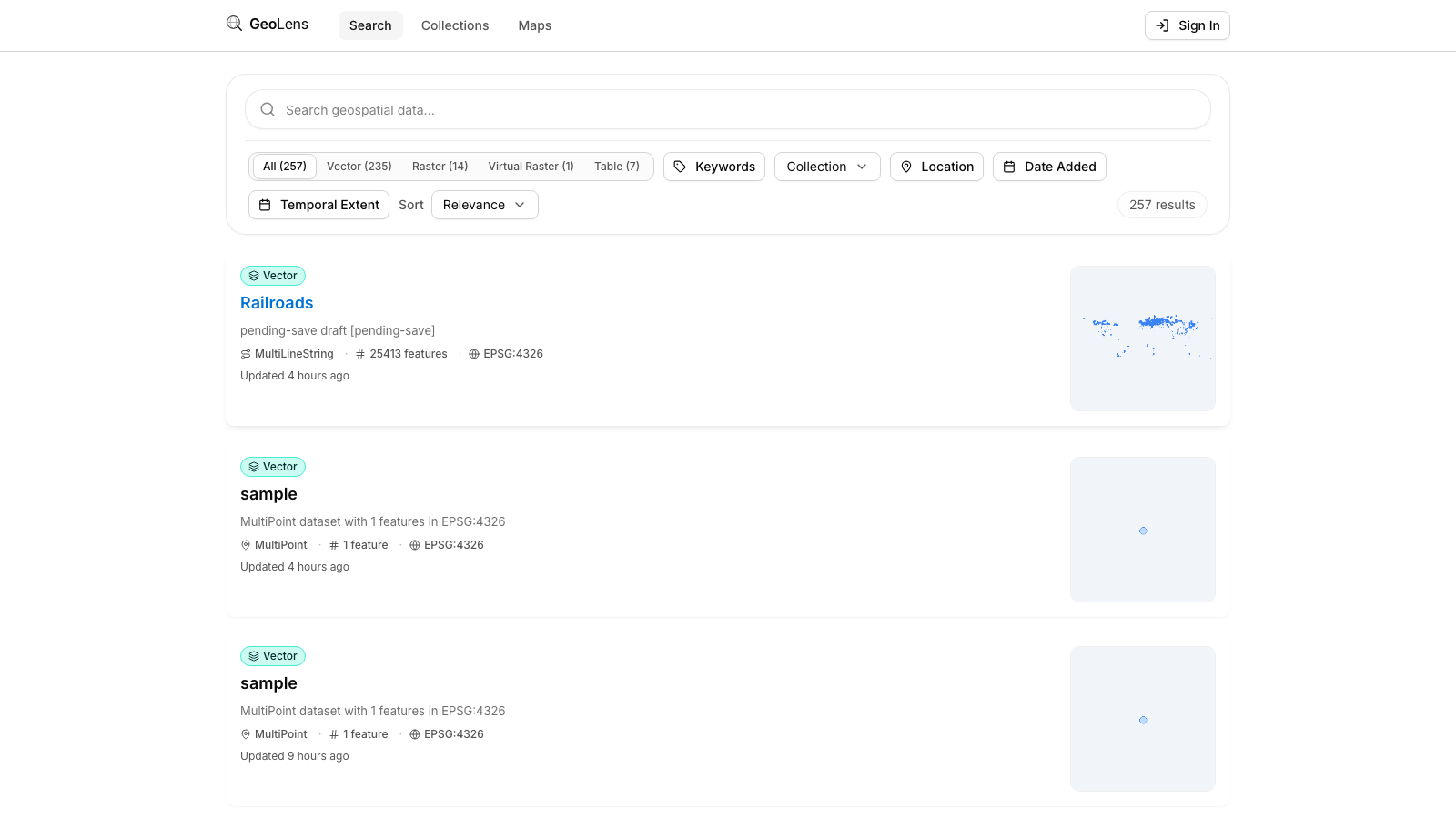
After Step 5, your browser shows the GeoLens catalog with your first dataset. The map preview,
metadata panel, and OGC API endpoints at
http://localhost:8001/collections
are all live. Use the search bar to filter datasets, click a card for metadata, and open the
map builder to compose multi-layer maps.
Troubleshooting
- Port conflict — If port 5434, 8001, or 8080 is already in use by another service, edit
.envand changeDB_PORT,API_PORT, orFRONTEND_PORTto free values. Then rundocker compose down && docker compose up -d --buildto apply. - Admin login fails — Confirm
GEOLENS_ADMIN_USERNAMEandGEOLENS_ADMIN_PASSWORDin.envmatch what you're typing. After editing.env, restart services withdocker compose restart api. - Services slow to start — The first
docker compose upbuilds images and downloads ~1 GB of base layers. Watch progress withdocker compose logs -f. Subsequent starts are near-instant. - File upload fails — Confirm the file is one of the supported formats: GeoJSON, Shapefile ZIP, GeoPackage, CSV, or a public OGC service URL. Check the upload dialog for validation errors.
Next steps
- Explore the full capability depth on the Features page
- View the source and contribute on GitHub
- Read the CONTRIBUTING.md for development environment setup