Quickstart: install GeoLens locally
Follow these steps to go from curl -fsSL https://getgeolens.com/install.sh | sh to a running GeoLens instance with admin access and your first uploaded dataset. You do not need cloud accounts; everything runs locally via Docker Compose.
Not ready to run Docker? Skip the install and browse the live demo
Prerequisites
- ✓ Git and curl - the installer clones the repository and downloads over HTTPS
- ✓ Docker Engine 24.0+ - from Docker Desktop or the Docker Engine packages
- ✓ Docker Compose v2.20+ - included with current Docker Desktop, or install the compose plugin separately
- ✓ Memory: - 8 GB or more available to Docker - the installer warns below 7 GB
- ✓ Open local ports: - 5434 (PostgreSQL), 8001 (API), 8080 (Frontend UI)
Step 1: Run the public installer
Recommended first run:
curl -fsSL https://getgeolens.com/install.sh | shThe installer clones into a geolens directory. Run the remaining commands on this page from inside it:
cd geolensFor a source checkout instead, clone the GeoLens repository and run the same installer from the checkout:
git clone https://github.com/geolens-io/geolens.git
cd geolens
bash scripts/install.sh
Or download the release tarball: github.com/geolens-io/geolens/releases/latest
Step 2: Review generated credentials
The public installer clones the latest release tag, pulls prebuilt images, copies .env.example to .env, generates a JWT signing secret, and prompts for an admin username (default admin) and password. Leave the password blank to have a strong one generated for you - retrieve it later with grep '^GEOLENS_ADMIN_PASSWORD=' .env. Source checkouts and branch refs build from source instead of pulling release images. Re-running the installer is idempotent: existing values are preserved, and the script waits until every service is healthy.
Step 3: Verify services
Confirm the stack came up healthy before logging in:
docker compose psThe db, api, worker, titiler, frontend, and backup services should all show running / healthy status. The one-shot migrate job runs first and exits before this step, which is expected.
Step 4: Log in and verify
Open the GeoLens UI in your browser:
http://localhost:8080Log in with the admin username (default admin) and the password you set or that the installer generated:
- Username:
admin - Password: the password you set, or your generated one
The catalog will be empty after a fresh install - that's expected. Upload your first dataset in the next step.
Step 5: Upload your first dataset
Download a tiny public-domain sample - Natural Earth's 1:110m countries shapefile - and upload it through the GeoLens UI.
curl -LO https://naturalearth.s3.amazonaws.com/110m_cultural/ne_110m_admin_0_countries.zip In the GeoLens UI, click Create in the header, choose Import Data, and select the ZIP file. GeoLens detects the CRS (EPSG:4326) and schema; confirm the import to publish. The dataset appears in the catalog search. Imports are private by default, so the OGC API at http://localhost:8080/api/collections lists it only for authenticated requests (send a bearer token) or after you make the dataset public. Opening that address in the browser is an anonymous request, so it lists only the catalog collection.
The Natural Earth sample includes Antarctica, so the import clips two features at the Web Mercator limit and the dataset page shows a warning about the source coordinates. For this sample the warning is expected.
What you'll see
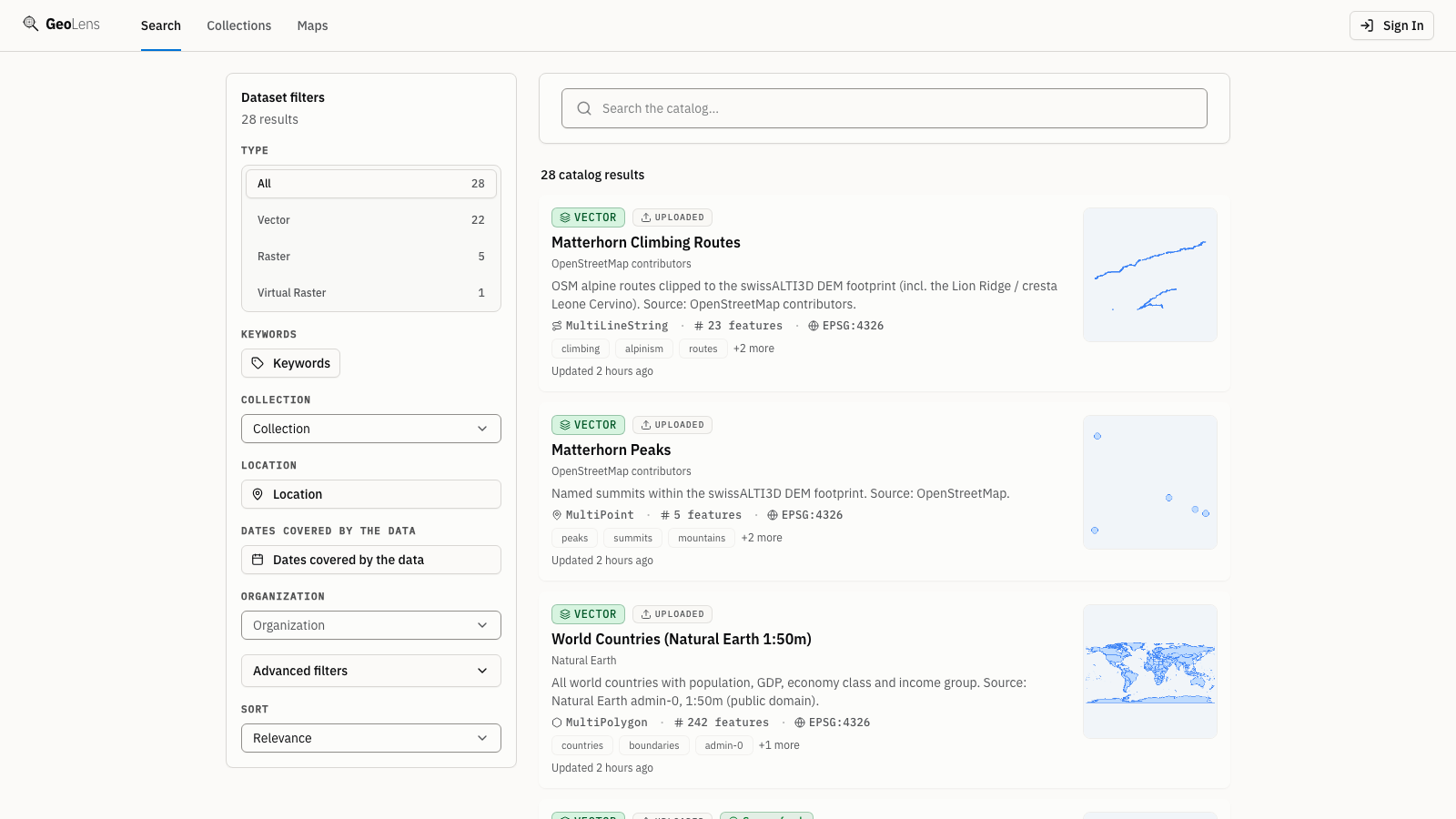
After Step 5, your uploaded dataset appears in the GeoLens catalog. As you add more data the catalog fills out like the one below: searchable dataset cards with type badges and faceted filters. The map preview, metadata panel, and OGC API endpoints at http://localhost:8080/api/collections are all live; private datasets appear there only for authenticated requests. Use the search bar to filter datasets, click a card for metadata, and open the map builder to compose multi-layer maps.
Step 6 (optional): Load the showcase maps
Want a full catalog instead of a single dataset? The repo ships a seed script that builds seven showcase maps from public open data, including the Manhattan 3D skyline from the homepage hero. From the geolens directory the installer created:
pip install httpx
python scripts/seed-showcase.py --username admin --password "$(grep '^GEOLENS_ADMIN_PASSWORD=' .env | cut -d= -f2-)"
Requires internet access to the upstream open-data sources.
Troubleshooting
- Port conflict - If port 5434, 8001, or 8080 is already in use by another service, edit .env and change DB_PORT, API_PORT, or FRONTEND_PORT to free values. Then run docker compose down && docker compose up -d --build to apply.
- Admin login fails - The installer stores the admin username and password in .env; from the geolens directory, grep '^GEOLENS_ADMIN' .env shows them. The account is created once, on the first start with an empty database, so editing those values later does not change it. If another admin can sign in, reset the password from the Users page in the admin area. On an evaluation install with nothing to keep, docker compose down -v && docker compose up -d starts over with an empty database and creates the account from .env; this deletes all data.
- Services slow to start - Release-tag installs pull prebuilt images. Source checkouts build locally and can take longer; watch progress with docker compose logs -f. Subsequent starts reuse cached layers.
- File upload fails - Confirm the file is one of the formats the Import Data page lists: Shapefile or File Geodatabase in a ZIP, GeoPackage, GeoJSON, GeoParquet, FlatGeobuf, KML/KMZ, CSV, Excel, a 3D Tiles tileset (.3tz or a zipped tileset), a COPC point cloud (.laz), or a GeoTIFF/COG raster, or a WFS, ArcGIS, OGC API, or STAC URL. Check the upload dialog for validation errors.
Next steps
- Browse the main capabilities on the Features page
- View the source and contribute on GitHub
- Read the CONTRIBUTING.md for development environment setup